Microsoft Teams Planner. Kanban for Your Team
You can run a kanban board inside Microsoft Teams in about thirty minutes. Add Planner as a tab in a channel. Each plan becomes a board, each bucket a column, each task a card. No new login, and for many teams no new licence.
I have set this up with enterprise and cross-functional teams across pharmaceuticals, FMCG and public services. The tool is rarely what fails. A board goes stale because nobody agreed what “In Progress” means or whose job it is to move the card. That is a design problem, not a discipline problem.

This Microsoft Teams Planner kanban guide covers what Planner is, why it works as a kanban board in Teams, and a five-step quick start.
For teams already familiar with sticky notes on a physical board, Planner is the natural digital equivalent, the same visual logic of visualising your work, with the added benefit of assignments, due dates, and integration across the Microsoft 365 ecosystem.
What Is Microsoft Teams Planner?
A Microsoft Teams Planner kanban board organises work into Plans, with tasks displayed as cards and grouped into vertical buckets, typically labelled To Do, In Progress, and Done, though teams can name these however their workflow demands. It is designed for visual workflow management: the board view makes the state of all work visible at a glance, without the need for a status meeting. In Teams, Planner is the app Microsoft renamed from Tasks by Planner and To Do in April 2024, so older tutorials may use the old name.
- Plans and buckets, each Plan is a board; each bucket is a column; each card is a task. The structure mirrors a physical kanban board directly.
- Task cards, each card can carry a due date, assignee, attachments, checklists, and notes, the full context a team member needs to act without asking for clarification.
- Teams integration. Planner is added as a tab inside any Teams channel, which means the board lives where the conversation already happens. Teams do not need to leave their workspace to check or update the board.
- Charts view, a built-in view that shows workload distribution and task completion at a glance, useful for retrospectives and for spotting bottlenecks before they become blockers.
For the definitive reference on Microsoft Planner’s full feature set, see Microsoft’s Planner help and learning.
Microsoft Teams Planner Kanban. Why It Works
The three most common reasons teams choose Planner over other kanban tools are simplicity, integration, and cost.
Simplicity. Planner requires no onboarding, no new accounts, and no licence beyond Microsoft 365. A team can have a working board in minutes. For teams new to kanban thinking, that low barrier to entry matters, the tool should not be harder than the practice it is supporting.
Integration, because Planner lives inside Teams, task updates happen in the same space as team conversations, file sharing, and meeting scheduling. Context does not get lost between tools.
Cost. Planner comes with many Microsoft 365 plans, so many teams pay nothing extra. Premium plans and some features depend on your licence, so check yours before you plan around it.
The limitation worth naming: Basic plans are built for small-team task management, not enterprise portfolio management. Planner’s paid premium plans add dependencies, sprints and a Timeline view, but they need a Planner and Project licence. For several teams running sprints with release planning across all of them, tools like Azure DevOps or Jira are more appropriate. Planner is the right choice when the team needs visibility and simplicity, not complexity. Not sure whether a board suits the work? Stacey’s Matrix helps you tell simple work from complex. Whichever tool you choose, hold regular retrospectives so the board keeps improving.
Which Planner view is the kanban board in Microsoft Teams?
The Board view is Planner’s kanban view. Each bucket is a column, each task is a card, and you drag cards between buckets as the work moves.
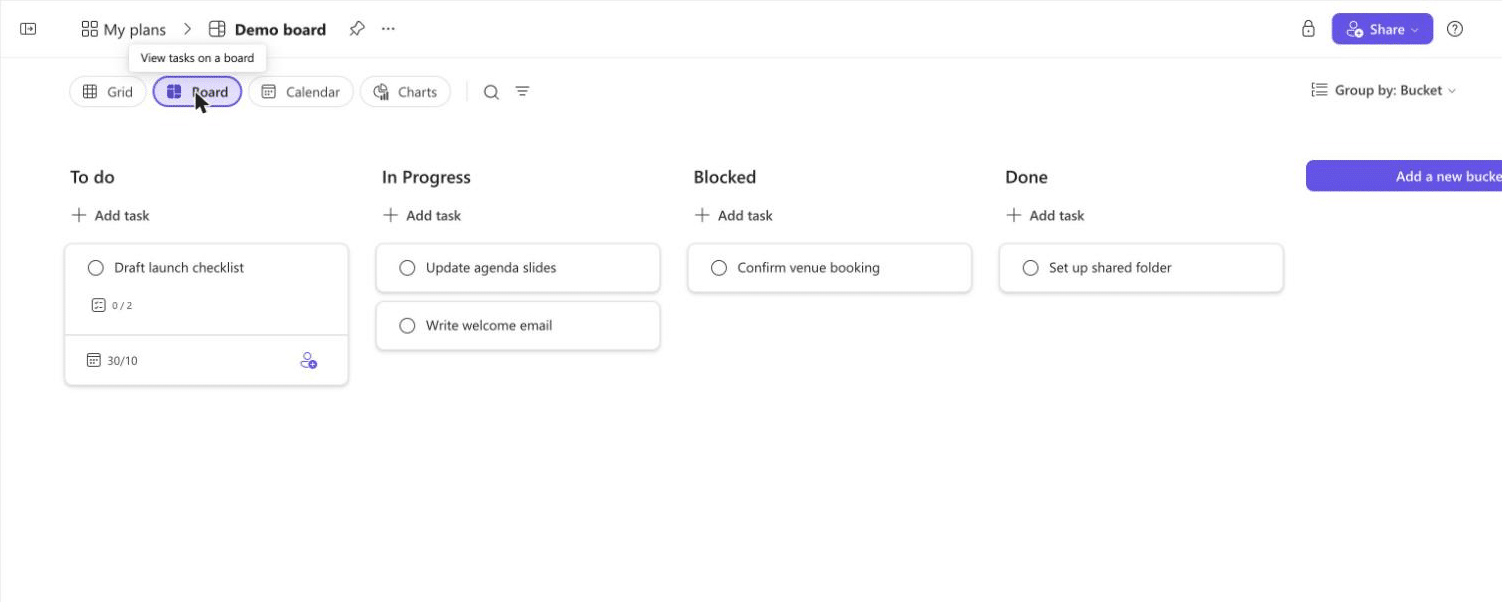
Planner shows the same plan in three other ways. Grid is a sortable list. Calendar shows tasks by date. Charts summarises progress and workload. Microsoft says anyone with a Microsoft 365 licence gets these four views, while Timeline, People and Goals need a paid Planner licence.
Use Board view for the daily conversation and Charts for the weekly one. Mixing them up is how a team ends up discussing a chart when the real question is who owns a card.

MS Planner Quick Start. Set Up Your Kanban Board in 5 Steps
Step 1. Add Planner to your Teams channel In Teams, go to your Team and Channel → select Add a tab at the top of the channel → choose Apps → select Planner → Save, then create a new plan or choose an existing one. The board immediately appears as a tab in your channel.
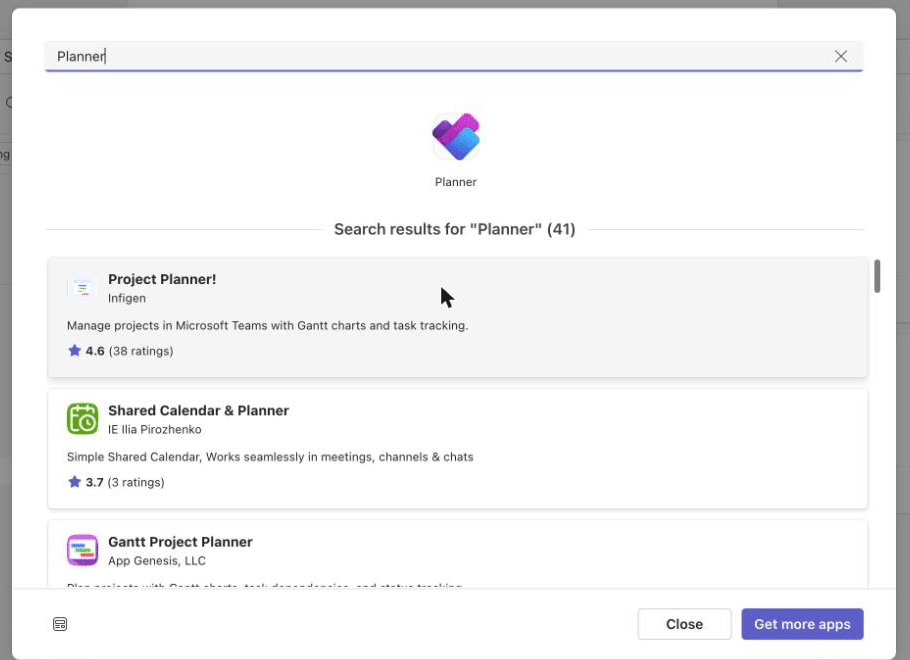
Step 2. Create your buckets Once the board is added, create your columns. Start with three: To Do, In Progress, Done. Add more only when the team genuinely needs them, more buckets does not mean more clarity. To decide what goes in To Do, try Lean Coffee.
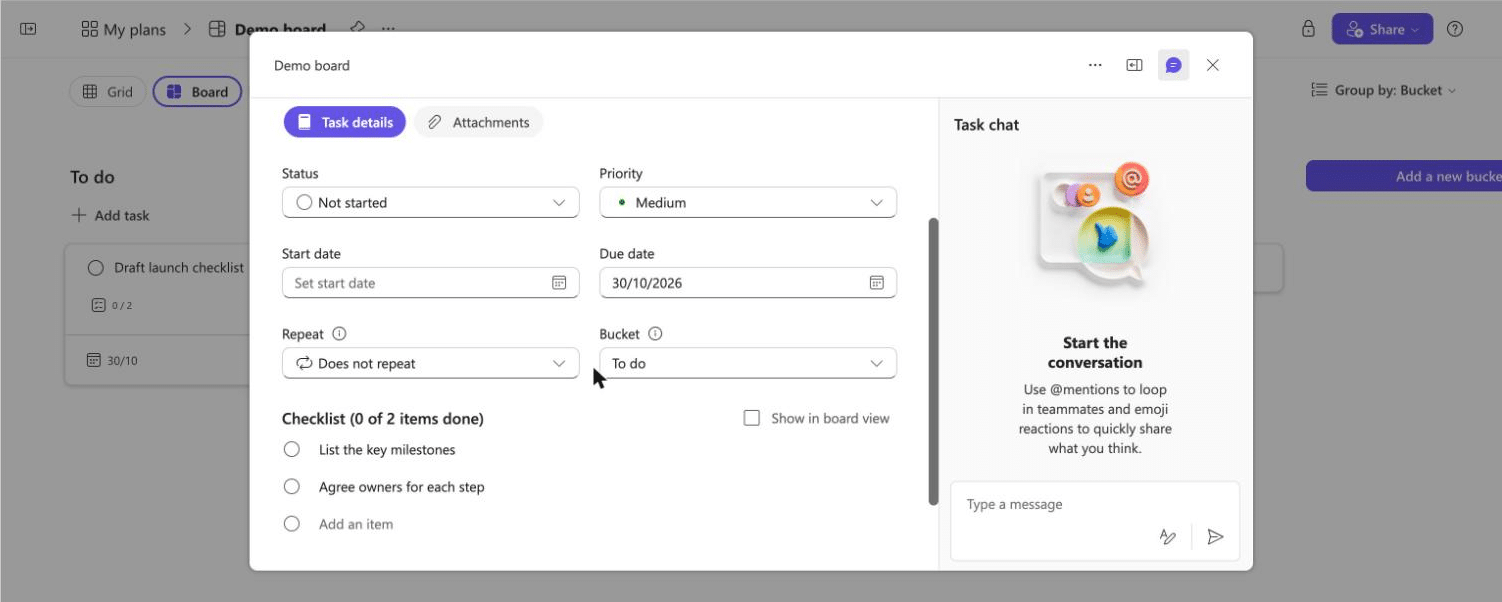
Step 3. Add tasks as cards Create a card for each piece of work. Give each card a title, a due date, and an assignee. Add a checklist if the task has sub-steps. Keep card titles as actions, “Draft the brief” is better than “Brief.” If the list is too long to act on, the Topic Triage Matrix helps you sort it.
Step 4. Move cards as work progresses Drag cards across buckets as their status changes. The discipline of moving cards, rather than just knowing in your head where things stand, is what makes the board useful. A board that isn’t kept current is just decoration.
Step 5. Use the Charts view for team health checks Switch to Charts view at the end of each week or sprint to see workload distribution across the team and identify any buckets where cards are accumulating. Use it in your team retrospective or review session as a factual starting point for the conversation.
What should each column on a Planner board mean?
Agree four things before the first card goes up: what each column means, who moves a card, when a card may enter a column, and when it must leave. Nobody moves a card they do not think is theirs to move.
| Bucket | What it means | Who moves the card | Rule |
|---|---|---|---|
| To Do | Agreed and ready, not started | The team, in its planning conversation | Every card has an owner and a due date before it goes in |
| In Progress | Someone is working on it now | The owner | Start with two cards per person and adjust once you see where work queues |
| Blocked | Waiting on someone else | The owner, naming who | Review every blocked card at the weekly session |
| Done | Meets the team’s agreed definition of done | The owner, or a reviewer if you agree one | If nobody can say what done looks like, the card is not ready for To Do |
This is an illustrative setup, not a rule from Microsoft. The point is that the board stops being a to-do list the day the team writes these rules down.
Getting More From Planner
A kanban board works best when the team has agreed on what the columns mean and how cards move between them.
Teams that pair Planner with a clear team agreement, covering working norms, ownership, and how decisions get made, get significantly more from the tool than teams who treat it as a to-do list. A steady rhythm helps too: see working in time boxes, sprint planning and the elements of the Scrum framework.
I work with enterprise teams on the human infrastructure behind tools like Microsoft Teams Planner kanban boards: the governance, the collaboration patterns, and the decision systems that determine whether a tool gets embedded or abandoned.
Make the work visible. Agree the rules. Review the rhythm. The board is the smallest part of it. See AgiliTea for how I approach the decision systems behind the tool.
If you are introducing Planner as part of a wider agile or transformation programme and want to talk through the approach, get in touch directly.
Schedule a conversation with me about your Microsoft Teams Planner kanban setup.
Kanban boards in Teams: common questions
Does Microsoft Teams have a kanban board?
Yes, through Planner. Add Planner to a channel and its board view gives you buckets as columns and tasks as cards you drag between them.
How do I add a kanban board to a Teams channel?
Open the channel, select Add a tab, choose Apps, then Planner and Save. Create a new plan or pick an existing one and the board appears as a tab.
Is Planner free in Teams?
Planner comes with many Microsoft 365 plans, so many teams pay nothing extra. Premium plans and some features depend on your licence, so check yours.
When should I use something other than Planner?
When you need dependencies, release planning or views across several teams. Planner suits one team managing its own work.
Which view in Planner is the kanban board?
The Board view. It shows each bucket as a column and each task as a card that you drag between buckets. Planner also offers Grid, Calendar and Charts on the same plan.
Why can’t I find Planner in Teams?
Look under Add a tab, then Apps, in the channel. If Planner is not listed, your organisation’s Teams admin may have restricted the app, so ask your IT team. Microsoft also publishes guidance for admins on managing the Planner app.
Can Copilot set up a Planner board for me?
Microsoft’s Planner Agent in Copilot became generally available in June 2026. It can create and update tasks from plain-language requests, and it shows a draft for you to review before changes are applied. What you can use depends on your licence, so check with your admin before planning around it.
Does Planner have dependencies and sprints?
Not in basic plans. Microsoft lists dependencies, sprints, custom fields and a Timeline view as premium features that need a paid Planner and Project licence.
Video walkthroughs: Microsoft Teams Planner in under 10 minutes
Once the board is up, the next problem usually is not the board. Cards sit in “In Progress” because the decision they need has no clear owner, or it sits with someone who is never in the room. That is decision latency, and it is the work I do with leadership teams: see how I work with organisations.
Schedule a Call with Kubair to talk through your Kanban plans
Last reviewed: November 2026.
